How to Edit Encrypted PDF Files: The Definitive Guide
Parth Soni
Editorial Team
At a Glance
Stop letting document security slow you down. Learn how to safely remove encryption and edit locked PDF files using legal and secure methods.
We've all been there. You're staring at a PDF contract that needs a signature right now, but every time you click, nothing happens. It's locked, and you don't have the password. Or maybe you do, but the "Edit" button is still greyed out. Frustrating? Absolutely. Impossible to fix? Not if you know how PDF security actually works.
The "Brick" vs. The "Glass Wall"
Not all locked PDFs are the same. In my experience fixing thousands of documents, I've learned there are two distinct types of "locks," and knowing which one you have is 90% of the battle.
1. The "Brick" (User Password)
This is the "Open" password. If you can't even see the document without typing a code, it's a brick.
The Reality: Modern encryption (AES-256) makes these files impossible to crack without the password. If you don't have it, no tool can genuinely help you. You need the key to open the door.
2. The "Glass Wall" (Owner Password)
This is the "Permissions" password. You can see the content, but you can't touch it. No printing, no copying text, no editing.
The Secret: This lock is superficial. It doesn't scramble the file; it just tells your PDF reader to behave restrictively. Our tools can legally lift these restrictions so you can edit freely.
Legal Standard
Always ensure you have the legal right to modify a document. Bypassing security on documents you don't own or have permission for may violate copyright or privacy laws.
How to Edit Your Encrypted PDF
The most reliable way to edit a secured document is to remove the protection using a legitimate decryption process. Editobox handles this security transition locally in your browser.
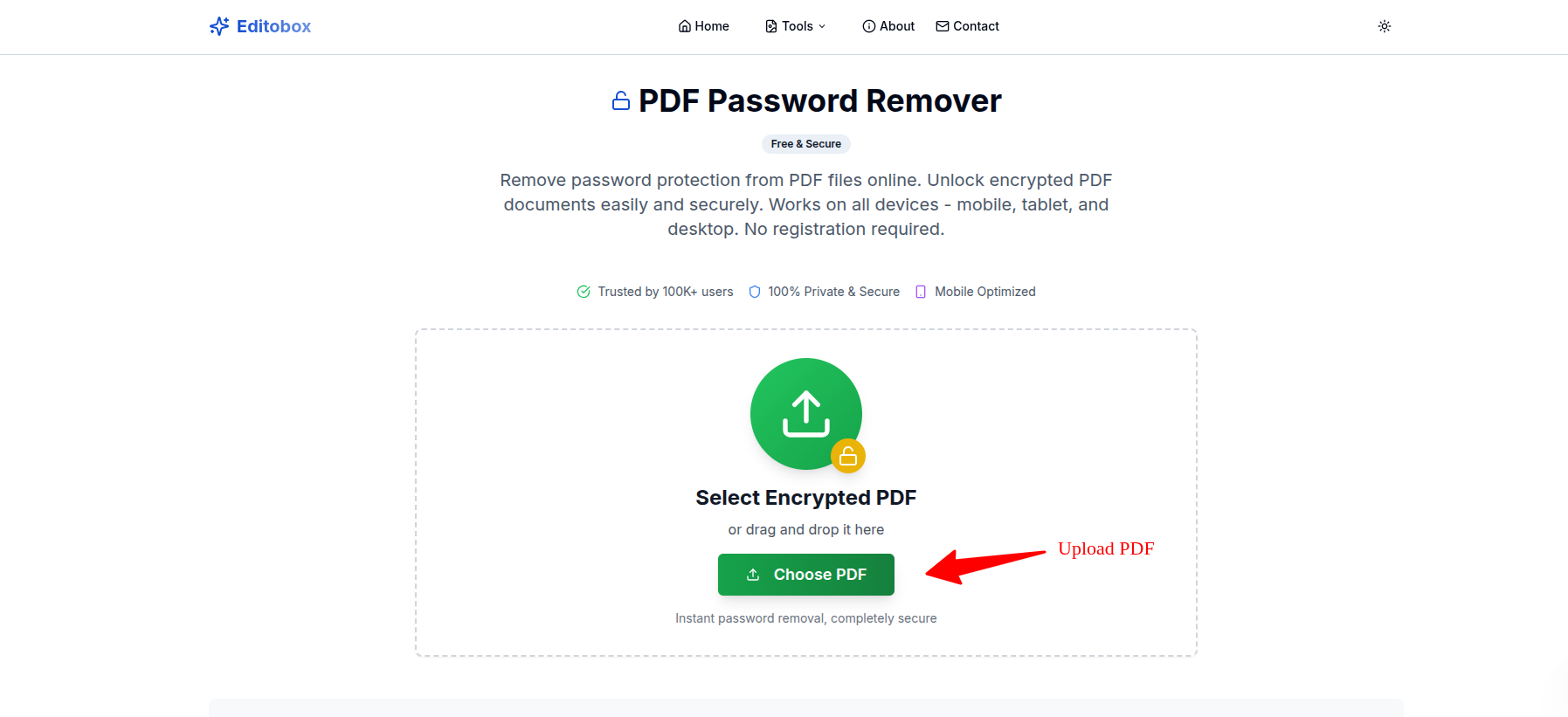
Upload Your File
Drag your protected PDF into our tool. It remains safe in your browser.
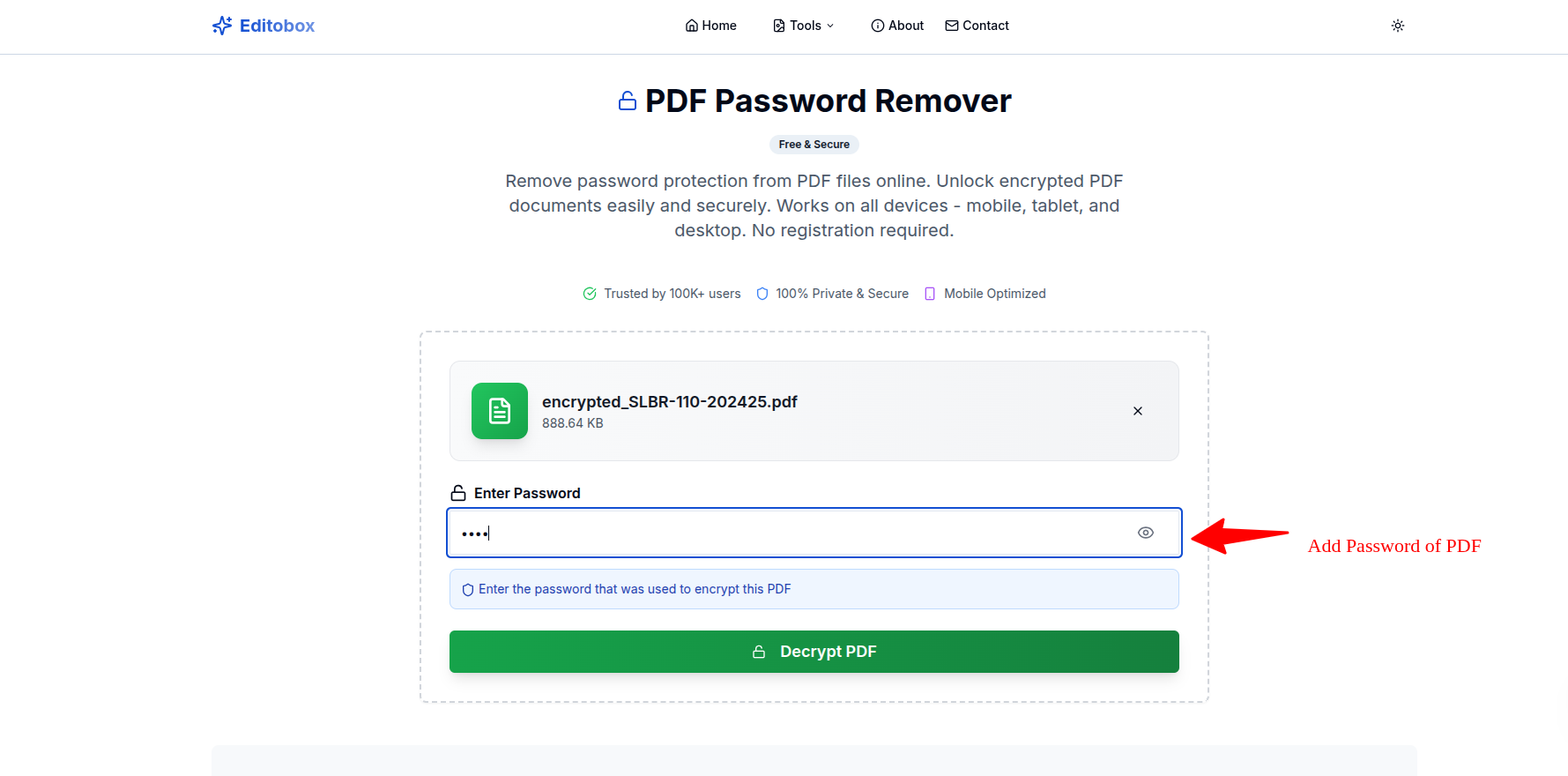
Authorize Unlock
Enter the password to prove ownership and initiate decryption.
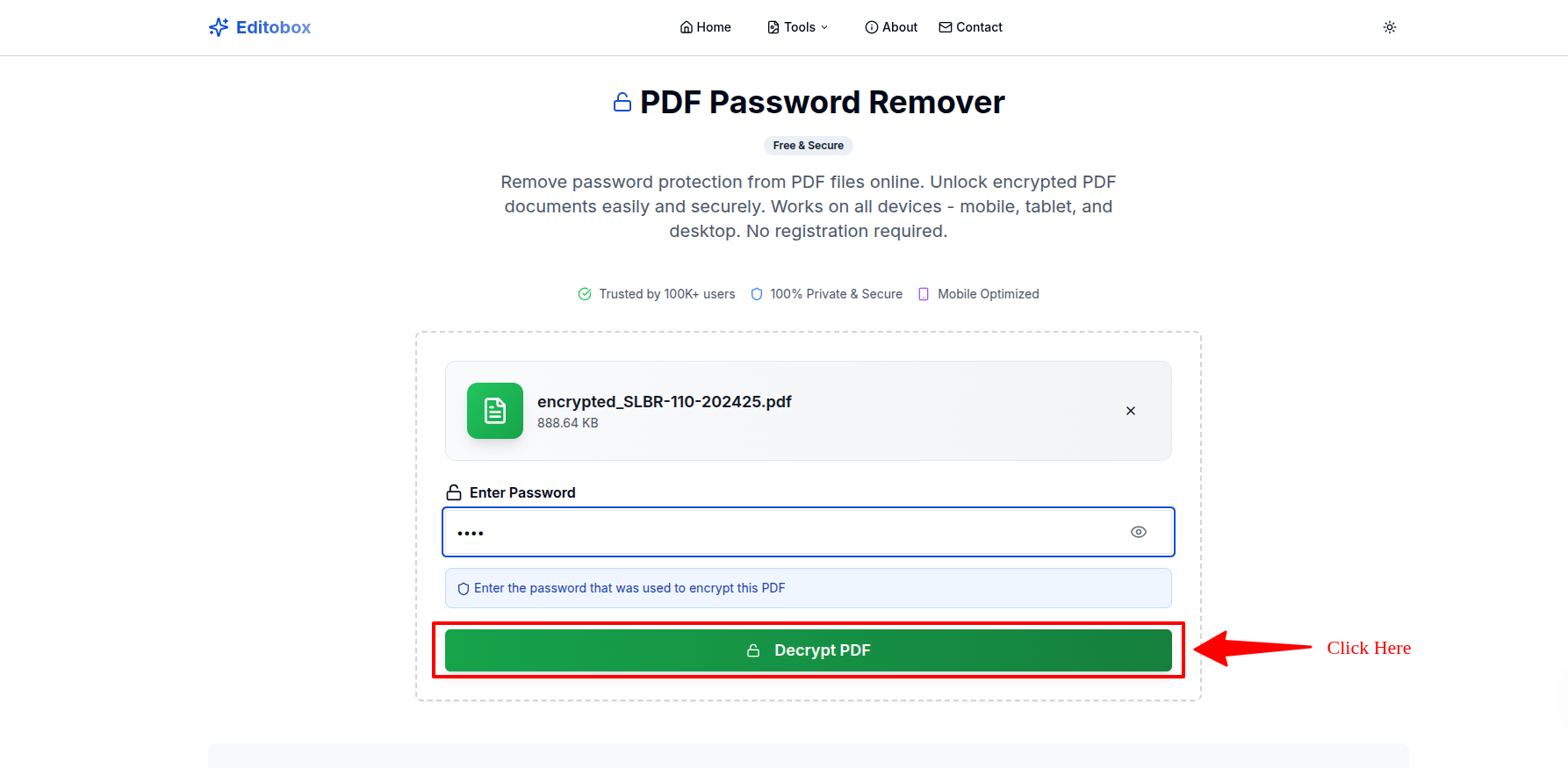
Remove Restrictions
Remove permission blocks and encryption headers instantly.
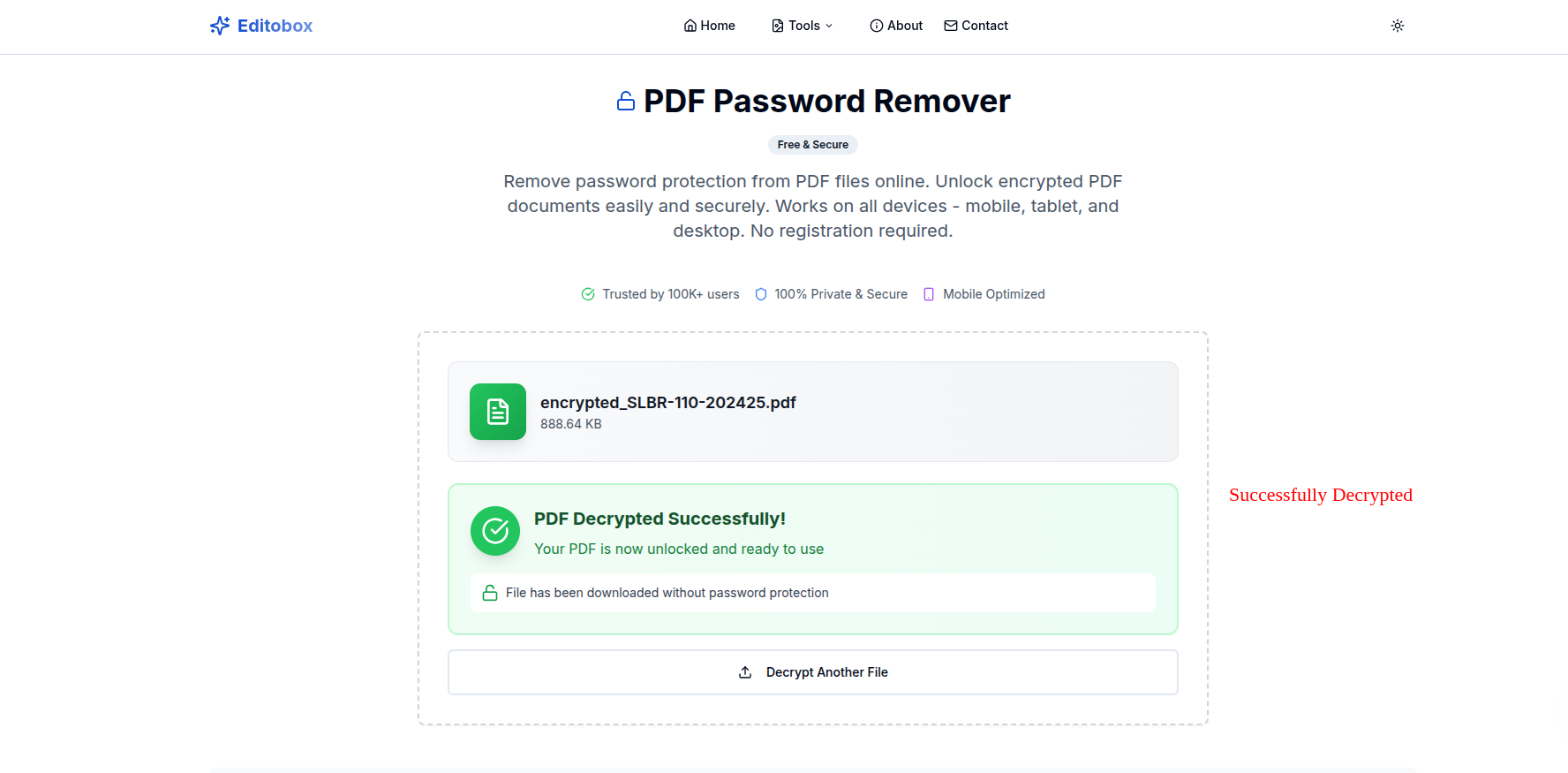
Edit Freely
Download the clean version and use any editor for modifications.
What Can You Edit After Unlocking?
Once the encryption is removed, the document behaves like any standard PDF. You have full creative and structural control over the content.
Fixing Typos
Correcting a date or name in a contract is the #1 reason people need to unlock PDFs. Once unlocked, simple text edits are easy.
Merging Files
Trying to combine a secured report with your own cover letter? You can't merge encrypted files. Unlocking them is the mandatory first step.
Signing Documents
If the "Sign" button is greyed out, the author likely restricted it. Unlocking allows you to add your digital signature legally.
Converting Formats
Need to turn that PDF into a Word doc or Excel sheet? Conversion tools fail on encrypted files. Unlock first, then convert.
Troubleshooting: "I Unlocked It, But It's Still Weird"
You've removed the password, but the file isn't behaving. Here are the two most common "ghost in the machine" problems I see—and how to fix them:
Problem 1: The "Picture of Text"
What's happening: You try to click a sentence, but the whole page highlights like an image. This means your PDF wasn't typed; it was scanned. The computer doesn't see words; it sees a photo of words.
The Fix: You need OCR (Optical Character Recognition). This technology traces the shapes of letters and turns them back into editable text.
Problem 2: The Ransom Note Effect
What's happening: You edit a word, and it looks completely different from the rest of the paragraph. This happens because the original exact font file isn't installed on your computer.
The Fix: When editing, try to match the font as closely as possible, or delete the entire line and re-type it so the spacing looks consistent. It's a small extra step that makes a huge difference in professionalism.
Professional Editing Best Practices
Maintain Backups
Always keep the original encrypted file as a reference before starting your edits.
Check Formatting
Unlocking can sometimes cause minor reflows. Verify your layout after editing.
Audit Metadata
Use a cleanup tool to remove sensitive history or hidden author data from the new file.
Re-Secure
Once your edits are done, consider re-encrypting the file before sharing it again.
Frequently Asked Questions
Q1Why can i not edit some PDF files even after opening them?
This is usually due to a "Permissions Password" (also known as an Owner Password). While you can view the file, the creator has specifically restricted editing, printing, or copying functions.
Q2Is it possible to edit a PDF without removing the password?
In most professional PDF editors, you will be prompted for the password before you can make any changes. Removing the password first makes the document universally editable.
Let's get that file open.
Whether it's a "Brick" or a "Glass Wall," our browser-based tools can help you get back to work safely.
Parth Soni
Lead Developer & Tool Expert
Parth is the lead developer at Editobox with over 8 years of experience in digital imaging and document processing systems.
Think this guide could help someone else?
Spread the knowledge. Sharing takes seconds and helps us keep our tools free forever.